
Submit: Add Publication
Publications added to the Morphbank database may relate to any object in Morphbank including specimens, images, collections, annotations, views, localities, and taxon names. If adding a regular scientific name to the database, adding a corresponding publication is required. External Links may be added to a virtual copy of the paper.
Path to Add Publication: header menu > Tools > Submit > Publication
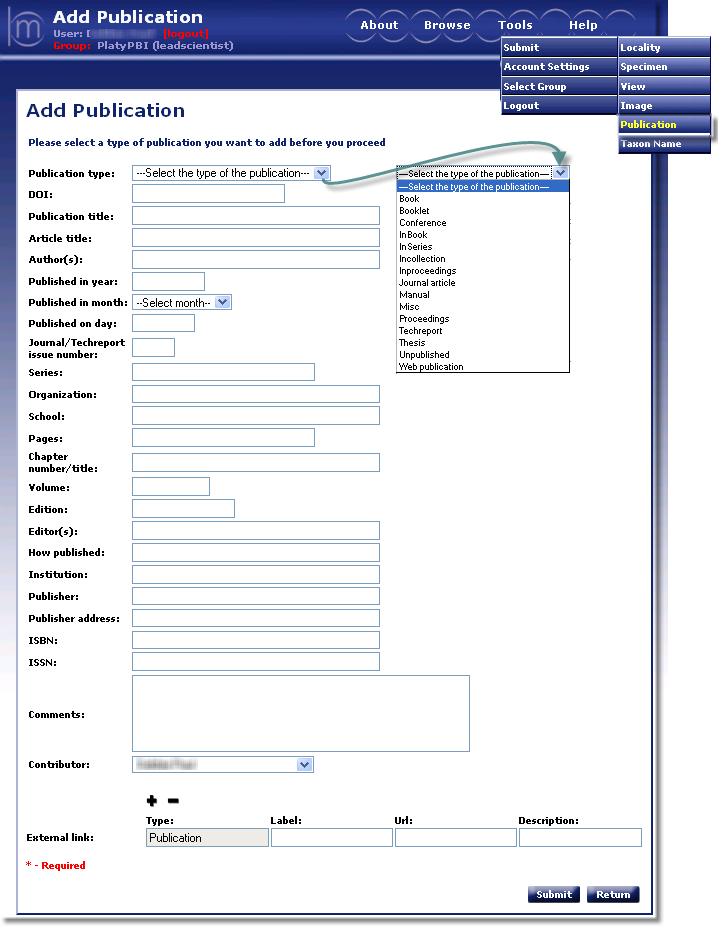
Data to be entered for the Add Publication screen varies with the type of publication selected. Note the required fields are indicated by a *. Fields that do not apply to a given publication type are grayed-out.
- Publication Type: Choose the type of publication from the drop-down.
- DOI®: a digital identifier for any object. If the publication being submitted has a DOI®, enter it here. For more information on DOI®'s go to http://www.doi.org/index.html
- Publication Title: Enter the name of the publication here. This field is case sensitive.
- Article Title: Enter the title of the article here as you wish it to appear in the database.
- Authors: Add Author names here, use the following [last name][first name initial][comma] format: Smythe J, Braun K
- Published in year: Enter year here
- Published in month:If applicable, enter month.
- Published on day: If applicable, enter day.
- Journal/Techreport number:
- Series:
- Organization:
- School:
- Pages:
- Chapter:
- Volume:
- Edition:
- Editor(s):
- How published:
- Institution:
- Publisher:
- Publisher address:
- ISBN:
- ISSN:
- Comments:
- Contributor: Select the name of the contributor (person having the authorization to release data and images to the public) from the dropdown list. The contributor can be different from the submitter (person entering the data). If you need to add new entries to this list, please contact mbadmin at scs dot fsu dot edu.
Morphbank provides an option to add External Links to this record. For complete instructions on providing links refer to External Linking in the Information Linking section of this manual.
When the Add Publication form has been completed, Submit to complete the add publication process. A message will confirm that you have successfully added a publication. From this point the user can continue to add additional publications or click return (goes to the front page of Morphbank) or click on the desired destination using drop-downs in the Header Menu.
Next |
Contents |

