
Browse - Localities
A locality includes detailed information about where a specimen was collected. By selecting the Browse - Locality option, the user will be presented with a list of all localities registered on the morphbank database.
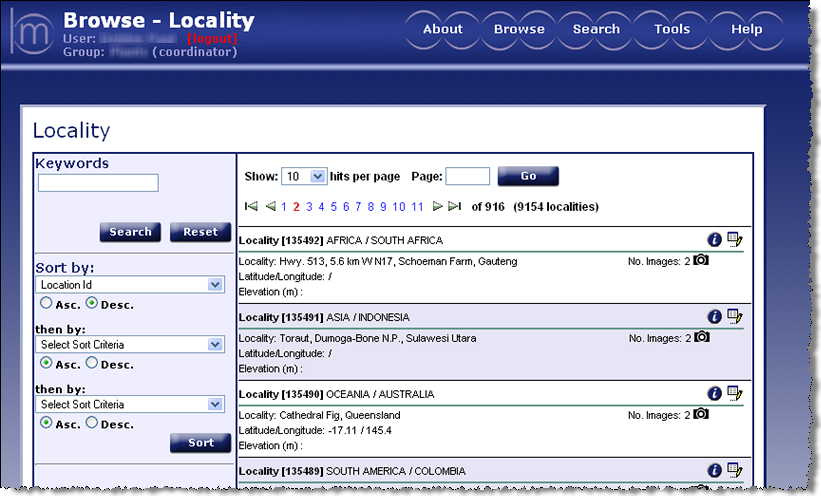
Browse - Localities by Keywords
As explained in Browse - Images, use the Keywords field to display a list of localities based on its locality field, continent/ocean and/or country. To display a list of localities based on a keyword(s) search, type the keyword(s) in the box and select Search. For example, to browse for all localities pertaining to the Africa (continent) Zimbabwe (country) and Harare (locality); type in africa zimbabwe harare and select Search.

After a Keyword Search of Localities - Sort the Results, View Images, See Locality Details
Tag descriptions
- Note the keyword search in this example results in 2 Localities.
- After a Keyword Search of the Localities, one can sort the resulting list of localities.
Select the Sort By criteria from the drop down list(s). The more criteria selected, (up to 3 levels)
the more refined the browse will be. The resulting page will display the locality list with the initial Sort By option grouped together
first, followed by groups of any of the other sort criteria that was selected.
The Sort feature of morphbank is explained in detail in Browse - Sort Search Results
Sort criteria options include:- Location id: Unique morphbank-issued identifier for a locality
- Continent ocean: name of continent or ocean where the specimen was collected
- Country: name of the country where the specimen was collected
- Locality: detailed description of where the specimen was collected
- Number of images: pertaining to one specimen
Browse - Locality: Single Show
is displayed from any information Icon on any Browse - Locality page.
This page displays Information unique to a locality record. For complete
documentation on single show refer to Morphbank Show in the Information
Linking section of this manual.
on any Browse - Locality page.
This page displays Information unique to a locality record. For complete
documentation on single show refer to Morphbank Show in the Information
Linking section of this manual.Viewing Images for a Given Locality:
Any given Locality may have 1 or more images associated with it; for the example above, locality id 111689 has 5 images. To see the images for a particular locality, click on the icon for that Locality.
A Browse - Images page will open displaying these images. In Browse - Images use the
icon for that Locality.
A Browse - Images page will open displaying these images. In Browse - Images use the  icon
to see the hierarchy tree or go to the alphabetical list of all taxonomic names in morphbank.
For any image in this Browse - Images page, each image is associated with a specimen.
Left click on any thumbnail to display the Single Show details for any image.
icon
to see the hierarchy tree or go to the alphabetical list of all taxonomic names in morphbank.
For any image in this Browse - Images page, each image is associated with a specimen.
Left click on any thumbnail to display the Single Show details for any image.- Morphbank-issued Locality id number and Selection
 : The locality
id number can be used to search in the Browse - Images or Browse - Locality modules. To search for
and select a Locality use the feature further explained in the
Browse - Images
section of this manual.
: The locality
id number can be used to search in the Browse - Images or Browse - Locality modules. To search for
and select a Locality use the feature further explained in the
Browse - Images
section of this manual.
Next |
Contents |

