
Edit
General Rules:
- You must be logged in to edit your records and you must have permission to edit those records.
- Only contributors (aka Users), submitters and group coordinators have permission to edit their objects in Morphbank.
- The presence of an
 means you have permission to delete the object.
 - Published records may not be edited, although there are exceptions. If a contributor or submitter finds a typo, the record may be edited.
- If a contributor finds a problem with a published record, they may try to edit as well as contact mbadmin at scs dot fsu dot edu for help.
- The
 (Edit icon) appears in each My Manager Tab, next to each object's thumbnail.
 - Click the icon to open the Edit screen for a particular object in a new tab.
This Edit manual page contains general instructions for how to edit most Morphbank Objects including:
- Image
- Specimen
- View
- Locality
- Taxa
- Annotation
- Publication
- Collection
Knowing where to edit:
- With the release of the My Manager user-interface, a user (a Morphbank Contributor) can edit their objects from any of the Tabs in My Manager.
- The Submitter may also edit the objects they have submitted for a Morphbank Contributor.
- Every object is associated with a Morphbank Group. Anyone in a particular group, with at least a lead scientist role, may also Edit objects associated with that group.
- If a Morphbank Contributor opens a single show using the
 for any of their objects (published or not), the icon is available inside the single show.
 - For an unpublished Collection a user has created, they may Edit this Collection by finding and opening it in My Manager
Collections from the
 icon.
icon. - From My Manager > Annotations, a user finds their unpublished Annotations and clicks on the
icon to open the Edit Annotation Screen. Go to
Edit Annotations
for details.
Icons commonly found in Edit:
 Browse: To modify the record you must select from already existing records
 Add a record: You can add a new record by clicking on the plus
Edit using My Manager:
icon to open the Edit screen in a new tab.At the moment, you may edit your Locality, Specimen, View, Image, Publication, Annotation, & Collection records in several different ways,
- via the icon found at header menu > browse > choose tab
- via the icon found at header menu > tools > my manager > choose tab
- or via the icon in any single show.
For example: if you know a specific location record is incorrect, go to Browse > Locality, search for that record and click the edit icon. This icon will take you to the Edit Locality screen (in a new tab) where you can modify information about that specific location record.
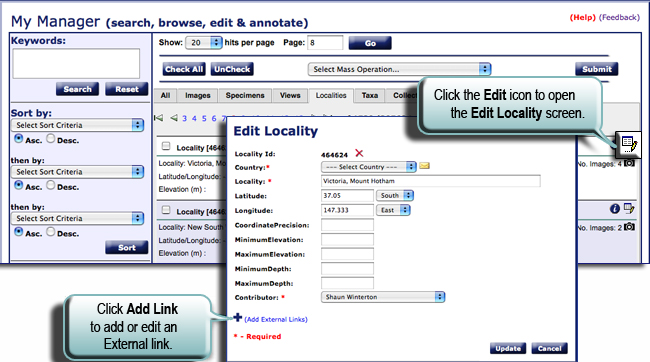
Also you can add or edit External Links from this window. Once you have finished changing the form click the
 button. A small window will popup that requires a response.
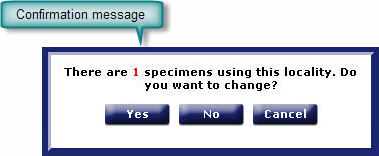
This window tells you how many records will be affected by the change you are about to make. Not to
worry, you will not be able to change records for which you do not have permission.
Selecting yes will send the user back to the Edit Locality screen where a
confirmation message will explain that the update has been made. Selecting no or cancel will send you
back to the Edit Locality screen without making any changes.
button. A small window will popup that requires a response.
This window tells you how many records will be affected by the change you are about to make. Not to
worry, you will not be able to change records for which you do not have permission.
Selecting yes will send the user back to the Edit Locality screen where a
confirmation message will explain that the update has been made. Selecting no or cancel will send you
back to the Edit Locality screen without making any changes.
Edit Hints and Common Questions:
Set a standard image for a Specimen or View:
From the Specimen Edit and View Edit you can set a standard image.
The standard image is the image that best represents your concept of the View or Specimen.
The default image is the first image you entered and if another image is desired as the standard display image,
click on the and choose it from the list of images.
 Delete:
- An entire image record cannot be deleted, but the image can be replaced if an incorrect image was uploaded.
- You can replace an image if an incorrect image is uploaded.
- Records created after upload can be deleted. In other words, Annoations and Collections made in Morphbank can be deleted (if they are not published).
- Please contact mbadmin at scs dot fsu dot edu
if you have any questions about deleting objects. You will see the
if you have delete privileges for a given object.
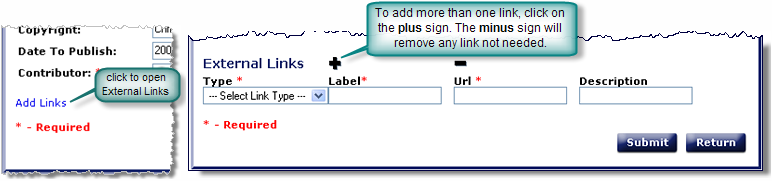
Links can be added to Specimen, Location and Image records. External Links and External Identifiers can be added to any object contributed. Click on the blue text Add Links to open this feature. These links will appear on the single show for that record. Links also can be added to other objects in Morphbank!
Edit Images:
From Edit Image users can:
- change to a different Specimen Id or View Id
- add a completely new Specimen record or View to associate with the selected image.
- and if the image is unpublished, a user may replace the image.
- Users cannot currently edit the existing Specimen record, View, or Locality data from the Edit Image screen page.
- Go directly to My Manager or Browse, find the Specimen or View to be edited, click the icon next to the Specimen or View to change details of the data for those objects.
- Go directly to My Manager or Browse, find the Specimen or View to be edited, click the
Edit Taxon Names
Edit Annotations
Edit Collections
Next |
Contents |

