
Browse - Specimens
By selecting the Browse - Specimens option, the user will be presented with a list of all specimens registered in the morphbank database.
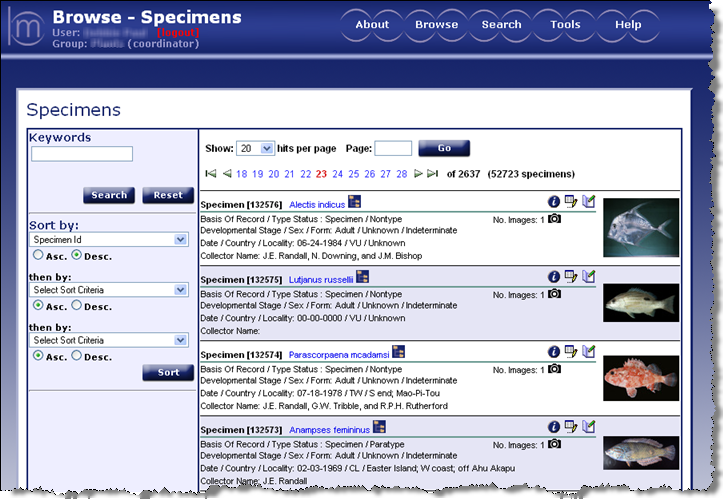
Browse - Specimens by Keywords
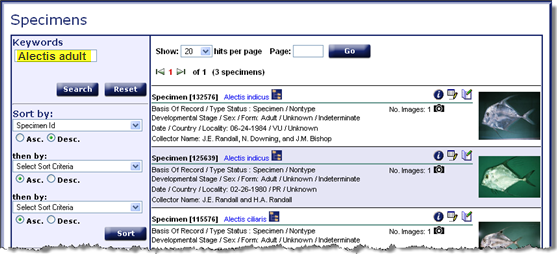
As outlined in Browse - Images, use Keywords search to display a list of views based on sex, form, basis of record, type status, collector name, institution code, collection code, catalog number, and/or taxonomic names. To display a list of specimens based on a keyword(s) search, type the keyword(s) in the box and select Search. For example, to browse for all specimens pertaining to Alectis (taxonomic name), adult (developmental stage): type in Alectis adult and select Search.
Sort the Results
As explained in Browse - Sort Search Results, to sort the list of specimens, select the Sort By criteria from the drop down list(s). The more criteria selected, (up to 3 levels) the more refined the browse will be (Figure 32). The resulting page will display the specimen list with the initial Sort By option grouped together first, followed by groups of any of the other sort criteria that was selected.
Sort criteria options for Browse - Specimen include:
- Specimen id: Unique morphbank-issued identifier for a specimen
- Basis of record: at the time of collection, the specimen was categorized as an observation, a living organization, a specimen, a germ plasm/seed
- Sex: present for specimens when known or applicable
- Form: Morphotype of the specimen. Specimens may have a form of parthenogenetic, indeterminate, unknown, etc.
- Developmental stage: developmental growth phase of specimen
- Type status: specimen that is universally accepted as being a clear example of its species
- Collector name: records are grouped by person who collected the specimen
- Date: when the specimen was collected
- Number of images: pertaining to one specimen
- Country: where the specimen was collected
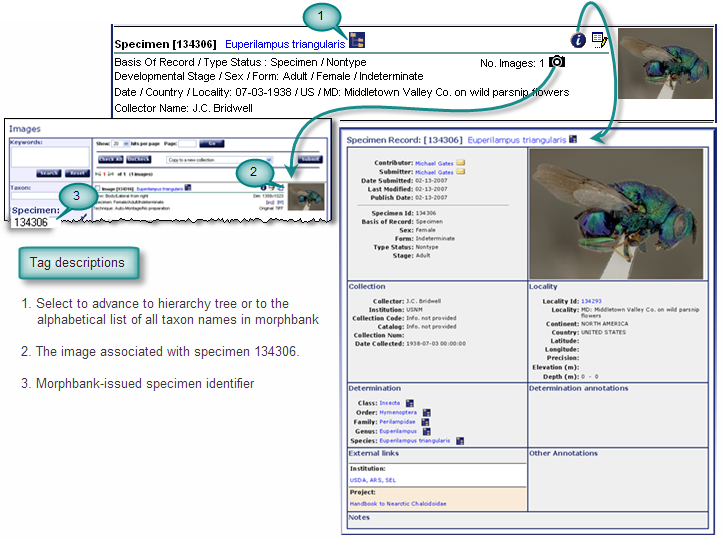
Browsing Images and Specimen Record data from Browse - Specimen
The
 icon in the Browse - Specimen page will
open the Browse - Images page displaying the images for a given specimen.
Clicking the information icon
icon in the Browse - Specimen page will
open the Browse - Images page displaying the images for a given specimen.
Clicking the information icon  for any specimen on
a Browse - Specimens page will display information unique to this specimen (Specimen
Record - Single Show). Morphbank Single Show is an efficient way to display large amounts of information. For complete
documentation on single show refer to Morphbank Show
in the Information Linking section of this manual.
for any specimen on
a Browse - Specimens page will display information unique to this specimen (Specimen
Record - Single Show). Morphbank Single Show is an efficient way to display large amounts of information. For complete
documentation on single show refer to Morphbank Show
in the Information Linking section of this manual.
Next |
Contents |

