
Collections tab - My Manager
From the Collections tab in My Manager, users can see any collection they've created in Morphbank as well as any other user's published collections. Morpbhank users will catch on quickly due to the modular nature of the tools and icons.
A collection is a group of any objects in the Morphbank database assembled by members for the purpose of viewing
and/or manipulating (e.g. rearranging the order, editing, and/or annotating, etc.) and
storing the collected objects for future use.
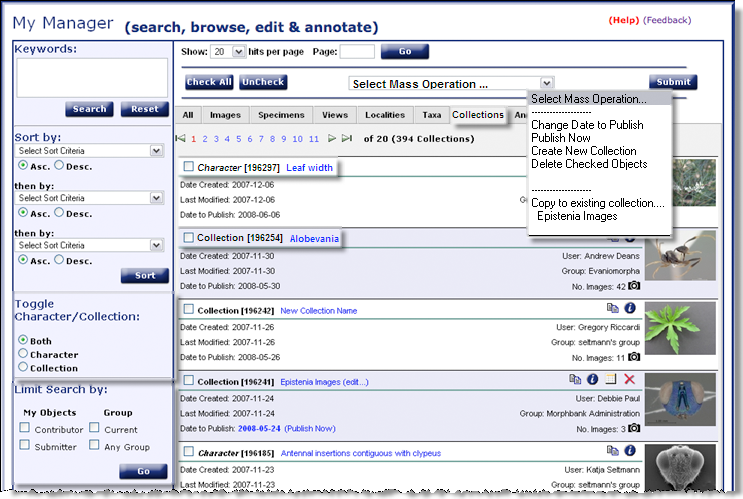
Currently, there are 3 types of Morphbank Collections:
- a Collection of Images (and / or other objects -- a mixed collection),
- a Character Collection created to illustrate Character States for a defined Character, and an
- OTU Collection consisting of Specimens and Taxon Names -- designed to help a user describe operational taxonomic units (OTU)s. OTU collections are in the Taxa tab.
Features and Functions of the Collections tab
Note the highlighted areas of the above image briefly explained next. Image / Mixed Collections & Character Collections are found in this tab. OTU collections are found in the Taxa tab.
 : please use this link to our automated feedback system. We appreciate your comments so that
we can continue to improve and enhance Morphbank. Clicking on (Help) opens this Manual.
: please use this link to our automated feedback system. We appreciate your comments so that
we can continue to improve and enhance Morphbank. Clicking on (Help) opens this Manual.- Keywords: Use the new enhanced search feature. Hold the mouse over the Keywords box to see an updated expanded list of fields the Keywords field searches.
- Toggle Collection/Character: In this version of Morphbank, the My Manager interface has 1 new Collection type, a Characater Collection, and a new feature has been added to the regular collections allowing any object in Morphbank to be placed in a collection. Use the radio buttons of this feature to view either or both types of Collections.
- Limit Search by: allows a user to view only the objects personally contributed/submitted AND/OR those from a particular group. Use the Header Menu > Tools > Select Group > Choose group from sub-menu feature to change groups OR use the Group link in the Header on the left side of the Main Screen.
- Check box: Note the
 check box to the left of each Collection/Character ID
and Title. Use this feature to Select one or more Collections which will then be highlighted green.
A particular action (like changing a date-to-publish) can now be applied to all the Collections at one time using the Select Mass Operation feature.
check box to the left of each Collection/Character ID
and Title. Use this feature to Select one or more Collections which will then be highlighted green.
A particular action (like changing a date-to-publish) can now be applied to all the Collections at one time using the Select Mass Operation feature.
- To see the contents of any Collection, click on the Collection Title or the
 info icon.
- A user can Edit the title of any unpublished Collection they've created simply by clicking on the (edit...) link next to a modifiable title.
- To see the contents of any Collection, click on the Collection Title or the
- Select Mass Operation:
After checking one or more Collections with the feature, options in the drop-down of
Select Mass Operation can be applied to all
checked objects. Examples include: gathering all the checked objects into a new/existing collecion,
or changing the date-to-publish on all checked objects at once. A user may also
delete an unpublished Collection if they so desire. The
 delete icon will
be present if delete is allowed.
delete icon will
be present if delete is allowed.  : Click this button to carry out the Mass Operation selected.
- Icons: The icons and their functions are explained fully in Morphbank
Guide to Graphic Buttons. An abbreviated
explanation can be found on the All page
for My Manager.
- Briefly, the
 icon
opens the collection.
icon
opens the collection.
- Clicking on the
 camera icon will open the Collection.
- The
 Calendar icon allows a user to change the date-to-publish for the Collection to be visible to all
Morphbank users or extend the time it remains private.
Calendar icon allows a user to change the date-to-publish for the Collection to be visible to all
Morphbank users or extend the time it remains private.
- The
 Copy icon allows a user to make two kinds of Collections, a regular or Characater
Collection from any Collection (of either type).
Copy icon allows a user to make two kinds of Collections, a regular or Characater
Collection from any Collection (of either type).
- Briefly, the
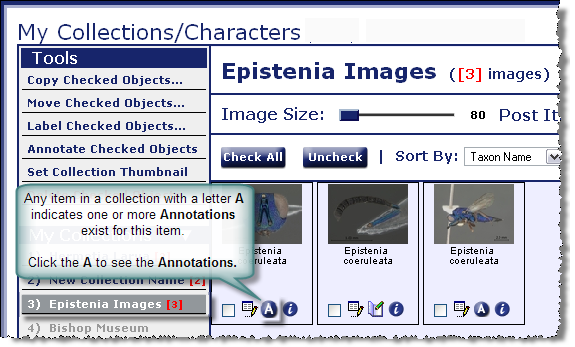
- Annotations: If annotations exist for an object inside a collection,
this will be indicated by the
 icon seen in the open collection
itself. (See screen shot).
icon seen in the open collection
itself. (See screen shot).
- Zooming Viewer: Morphbank utilizes an open source viewer so that new funtionality may be added to increase the value of the photograph for the user. Clicking on any thumbnail in the Collections tab will open the Collection, double-click on any image in the Collection to open the image in the Zooming Viewer.
Create a Collection
A Sample Collection
Edit a Collection
: A collection must be unpublished or a user will not be able to Edit the contents. To Edit an unpublished Collection, click the to open the Collection.
Alter the contents as desired. A user might delete some objects, change the title for some of the objects, or rearrange the objects in the
collection and save the order.
What exactly is a Collection?
Character Collections
Known Version Issues
Introduction to My Manager
Next |
Contents |

